Coaching Overlay
Coaching Overlays allow you onboard users and ensure the best experience.
Installation
If Coaching Overlay isn't already included in the sample project you started from, instructions can be found here.
Absolute Scale Coaching Overlay
The Absolute Scale Coaching Overlay onboards users to absolute scale experiences ensuring that they collect the best possible data to determine scale. We designed the Coaching Overlay to make it easily customizable by developers, enabling you to focus your time on building your WebAR experience.
Use Absolute Scale Coaching Overlay in Your Project:
-
Clone a project that contains the coaching overlay. The coaching overlay is included as a part of the
externalfolder. -
Optionally, customize the parameters of the
coaching-overlaycomponent as defined below. For Non-AFrame projects, please refer to the CoachingOverlay.configure() documentation.
A-Frame component parameters (all optional)
| Parameter | Type | Default | Description |
|---|---|---|---|
| animationColor | String | 'white' | Color of the Coaching Overlay animation. This parameter accepts valid CSS color arguments. |
| promptColor | String | 'white' | Color of all the Coaching Overlay text. This parameter accepts valid CSS color arguments. |
| promptText | String | 'Move device forward and back' | Sets the text string for the animation explainer text that informs users of the motion they need to make to generate scale. |
| disablePrompt | Boolean | false | Set to true to hide default Coaching Overlay in order to use Coaching Overlay events for a custom overlay. |
Creating a custom Coaching Overlay for your project
Coaching Overlay can be added as a pipeline module and then hidden (using the disablePrompt
parameter) so that you can easily use the Coaching Overlay events to trigger a custom overlay.
Coaching Overlay events are only fired when scale is set to absolute. Events are emitted by the
8th Wall camera run loop and can be listened to from within a pipeline module. These events
include:
coaching-overlay.show: event is triggered when the Coaching Overlay should be shown.coaching-overlay.hide: event is triggered when the Coaching Overlay should be hidden.
Example - Coaching Overlay with user specified parameters
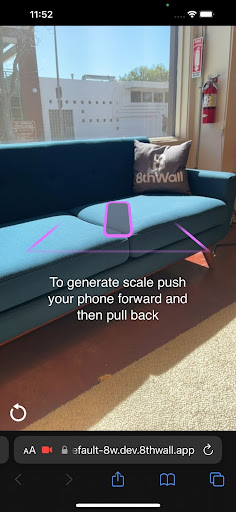
A-Frame Example (screenshot above)
<a-scene
  coaching-overlay="
    animationColor: #E86FFF;
    promptText: To generate scale push your phone forward and then pull back;"
  xrextras-loading
  xrextras-gesture-detector
  ...
  xrweb="scale: absolute;">
Non-AFrame Example (screenshot above)
// Configured here
CoachingOverlay.configure({
    animationColor: '#E86FFF',
    promptText: 'To generate scale push your phone forward and then pull back',
})
XR8.addCameraPipelineModules([
  XR8.GlTextureRenderer.pipelineModule(),
  XR8.Threejs.pipelineModule(),
  XR8.XrController.pipelineModule(),
  XRExtras.FullWindowCanvas.pipelineModule(),
  XRExtras.Loading.pipelineModule(),
  XRExtras.RuntimeError.pipelineModule(),
  LandingPage.pipelineModule(),
  // Added here
  CoachingOverlay.pipelineModule(),
  ...
])
AFrame Example - Listening for Coaching Overlay events
this.el.sceneEl.addEventListener('coaching-overlay.show', () => {
  // Do something
 })

this.el.sceneEl.addEventListener('coaching-overlay.hide', () => {
  // Do something
})
Non-AFrame Example - Listening for Coaching Overlay events
const myShow = () => {
  console.log('EXAMPLE: COACHING OVERLAY - SHOW')
}

const myHide = () => {
  console.log('EXAMPLE: COACHING OVERLAY - HIDE')
}

const myPipelineModule = {
  name: 'my-coaching-overlay',
  listeners: [
    {event: 'coaching-overlay.show', process: myShow},
    {event: 'coaching-overlay.hide', process: myHide},
  ],
}

const onxrloaded = () => {
  XR8.addCameraPipelineModule(myPipelineModule)
}

window.XR8 ? onxrloaded() : window.addEventListener('xrloaded', onxrloaded)
Sky Effects Coaching Overlay
The Sky Effects Coaching Overlay onboards users to Sky Effects experiences ensuring that they are pointing their device at the sky. We designed the Coaching Overlay to make it easily customizable by developers, enabling you to focus your time on building your WebAR experience.
Use Sky Effects Coaching Overlay in Your Project
-
Clone a project that contains the coaching overlay. The coaching overlay is included as a part of the
externalfolder. -
Optionally, customize the parameters of the
sky-coaching-overlaycomponent as defined below. For Non-AFrame projects, please refer to the SkyCoachingOverlay.configure() documentation.
A-Frame component parameters (all optional)
| Parameter | Type | Default | Description |
|---|---|---|---|
| animationColor | String | 'white' | Color of the Coaching Overlay animation. This parameter accepts valid CSS color arguments. |
| promptColor | String | 'white' | Color of all the Coaching Overlay text. This parameter accepts valid CSS color arguments. |
| promptText | String | 'Point your phone towards the sky' | Sets the text string for the animation explainer text that informs users of the motion they need to make. |
| disablePrompt | Boolean | false | Set to true to hide default Coaching Overlay in order to use Coaching Overlay events for a custom overlay. |
| autoByThreshold | Boolean | true | Automatically show/hide the overlay based percentage of sky pixel is above/below hideThreshold / showThreshold |
| showThreshold | Number | 0.1 | Show a currently hidden overlay if percentage of sky pixel is below this threshold. |
| hideThreshold | Number | 0.05 | Hide a currently shown overlay if percentage of sky pixel is above this threshold. |
Creating a custom Coaching Overlay for your project
Sky Coaching Overlay can be added as a pipeline module and then hidden (using the disablePrompt parameter) so that you can easily use the Coaching Overlay events to trigger a custom overlay.
sky-coaching-overlay.show: event is triggered when the Coaching Overlay should be shown.sky-coaching-overlay.hide: event is triggered when the Coaching Overlay should be hidden.
SkyCoachingOverlay.control
By default, Sky Effects Coaching Overlay automatically shows and hides the coaching overlay depending on whether the user is looking at the sky or not. You can take control of this behavior by using SkyCoachingOverlay.control.
// Show the coaching overlay
SkyCoachingOverlay.control.show()
// Hide the coaching overlay
SkyCoachingOverlay.control.hide()
// Make it so the sky coaching overlay automatically shows / hides itself.
SkyCoachingOverlay.control.setAutoShowHide(true)
// Make it so the sky coaching overlay does not automatically show / hide itself.
SkyCoachingOverlay.control.setAutoShowHide(false)
// Hides the coaching overlay and cleans it up
SkyCoachingOverlay.control.cleanup()
For example, part of your experience might no longer require the user to look at the sky. If you don’t call setAutoShowHide(false), the coaching overlay will appear on top of your UI. In this case, call setAutoShowHide(false), then manually control show and hide using show() and hide(). Or when you are ready to ask the user to look at the sky again, setAutoShowHide(true).
Example - Sky Coaching Overlay with user specified parameters
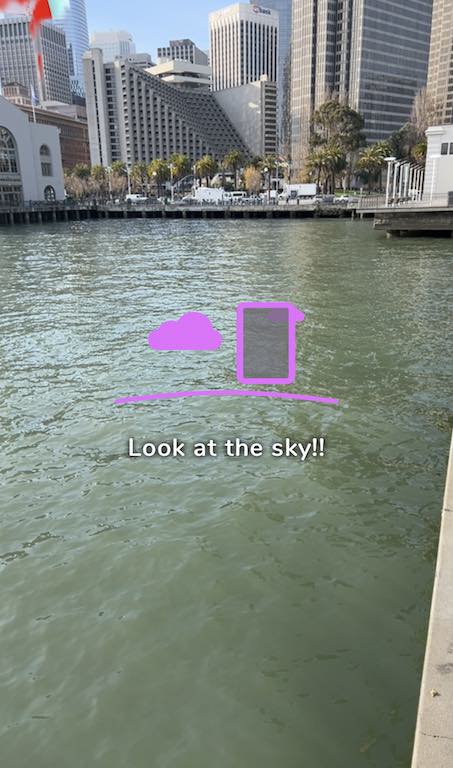
A-Frame Example (screenshot above)
<a-scene
  ...
  xrlayers="cameraDirection: back;"
  sky-coaching-overlay="
    animationColor: #E86FFF;
    promptText: Look at the sky!;"
  ...
  renderer="colorManagement: true"
>
Non-AFrame Example (screenshot above)
// Configured here
SkyCoachingOverlay.configure({
    animationColor: '#E86FFF',
    promptText: 'Look at the sky!!',
})
XR8.addCameraPipelineModules([  // Add camera pipeline modules.
    // Existing pipeline modules.
    XR8.GlTextureRenderer.pipelineModule(),      // Draws the camera feed.
    XR8.Threejs.pipelineModule(),                // Creates a ThreeJS AR Scene as well as a Sky scene.
    window.LandingPage.pipelineModule(),         // Detects unsupported browsers and gives hints.
    XRExtras.FullWindowCanvas.pipelineModule(),  // Modifies the canvas to fill the window.
    XRExtras.Loading.pipelineModule(),           // Manages the loading screen on startup.
    XRExtras.RuntimeError.pipelineModule(),      // Shows an error image on runtime error.

    // Enables Sky Segmentation.
    XR8.LayersController.pipelineModule(),
    SkyCoachingOverlay.pipelineModule(),

    ...
    mySkySampleScenePipelineModule(),
  ])

  XR8.LayersController.configure({layers: {sky: {invertLayerMask: false}}})
  XR8.Threejs.configure({layerScenes: ['sky']})
AFrame Example - Listening for Sky Coaching Overlay events
this.el.sceneEl.addEventListener('sky-coaching-overlay.show', () => {
  // Do something
 })

this.el.sceneEl.addEventListener('sky-coaching-overlay.hide', () => {
  // Do something
})
Non-AFrame Example - Listening for Sky Coaching Overlay events
const myShow = () => {
  console.log('EXAMPLE: SKY COACHING OVERLAY - SHOW')
}

const myHide = () => {
  console.log('EXAMPLE: SKY COACHING OVERLAY - HIDE')
}

const myPipelineModule = {
  name: 'my-sky-coaching-overlay',
  listeners: [
    {event: 'sky-coaching-overlay.show', process: myShow},
    {event: 'sky-coaching-overlay.hide', process: myHide},
  ],
}

const onxrloaded = () => {
  XR8.addCameraPipelineModule(myPipelineModule)
}

window.XR8 ? onxrloaded() : window.addEventListener('xrloaded', onxrloaded)