Image Targets
Use the image target example project as a reference to get started and confirm your project structure is set up correctly.
Introduction
Bring signage, magazines, boxes, bottles, cups, and cans to life with 8th Wall Image Targets. 8th Wall Web can detect and track flat, cylindrical and conical shaped image targets, allowing you to bring static content to life.
Not only can your designated image target trigger a web AR experience, but your content also has the ability to track directly to it.
Image targets can work in tandem with our World Tracking (SLAM), enabling experiences that combine image targets and markerless tracking.
You may track up to 32 image targets simultaneously. The set of active image targets can be changed at any time by calling XR8.XrController.configure(). This lets you manage hundreds of image targets per project making possible use cases like geo-fenced image target hunts, AR books, guided art museum tours and much more. If your project utilizes SLAM most of the time but image targets some of the time, you can improve performance by only loading image targets when you need them. You can even read uploaded target names from URL parameters stored in different QR Codes, allowing you to have different targets initially load in the same web app depending on which QR Codes the user scans to enter the experience.
Image Target Types
| Type | Description |
|---|---|
| Flat | Track 2D images like posters, signs, magazines, boxes, etc. |
| Cylindrical | Track images wrapped around cylindrical items like cans and bottles. |
| Conical | Track images wrapped around objects with different a top vs bottom circumference like coffee cups, etc. |
Generating Image Target Files
To use image targets in your project, you can generate the required assets with a command line interface (CLI). These files contain image target metadata needed by the engine.
If a graphical interface is preferred, you can also create image targets via the Desktop App. Even if you don't intend to use Studio, you can create an empty project, and after creating the target as desired, copy the generated files into your own project.
- Open a terminal window and run
npx @8thwall/image-target-cli@latest - Answer the prompts, following the examples below:
Enter the path to the image file:

~/Downloads/target1.png
Select the image type:
1) flat (default)
2) cylinder
3) cone

1
Use default crop? [Y/n]:

y
Enter the output folder:

~/Documents/8th Wall/my-project/image-targets
Enter a name for the image target:

target1
See documentation on Image Target CLI for more details on cropping and cylindrical/conical image targets.
On generation, the following will be outputted to the specified folder:
- Metadata within a JSON file
- Original image
- Cropped image
- Thumbnail image (263x350)
- Luminance image (grayscale, 480x640)
- Geometry image (for conical)
Configuring Image Targets
Create a file named app.js in the src folder (if you don't have one already). At the top of the file, configure image targets by providing paths to each image target's metadata JSON file.
const onxrloaded = () => {
  XR8.XrController.configure({
    imageTargetData: [
      require('../image-targets/target1.json'),
      require('../image-targets/target2.json')
    ],
  })
}
window.XR8 ? onxrloaded() : window.addEventListener('xrloaded', onxrloaded)
Changing Active Image Targets
The set of active image targets can be modified at runtime by calling XR8.XrController.configure()
Note: The set of currently active image targets will be replaced with the new set passwd to XR8.XrController.configure().
Optimizing Image Target Tracking
To ensure the highest quality image target tracking experience, be sure to follow these guidelines when selecting an image target.
DO have:
- a lot of varied detail
- high contrast
DON'T have:
- repetitive patterns
- excessive dead space
- low resolution images
Color: Image target detection cannot distinguish between colors, so don't rely on it as a key differentiator between targets.
For best results, use images on flat, cylindrical or conical surfaces for image target tracking.
Consider the reflectivity of your image target's physical material. Glossy surfaces and screen reflections can lower tracking quality. Use matte materials in diffuse lighting conditions for optimal tracking quality.
Note: Detection happens fastest in the center of the screen.
| Good Markers | Bad Markers |
|---|---|
 |  |
 | 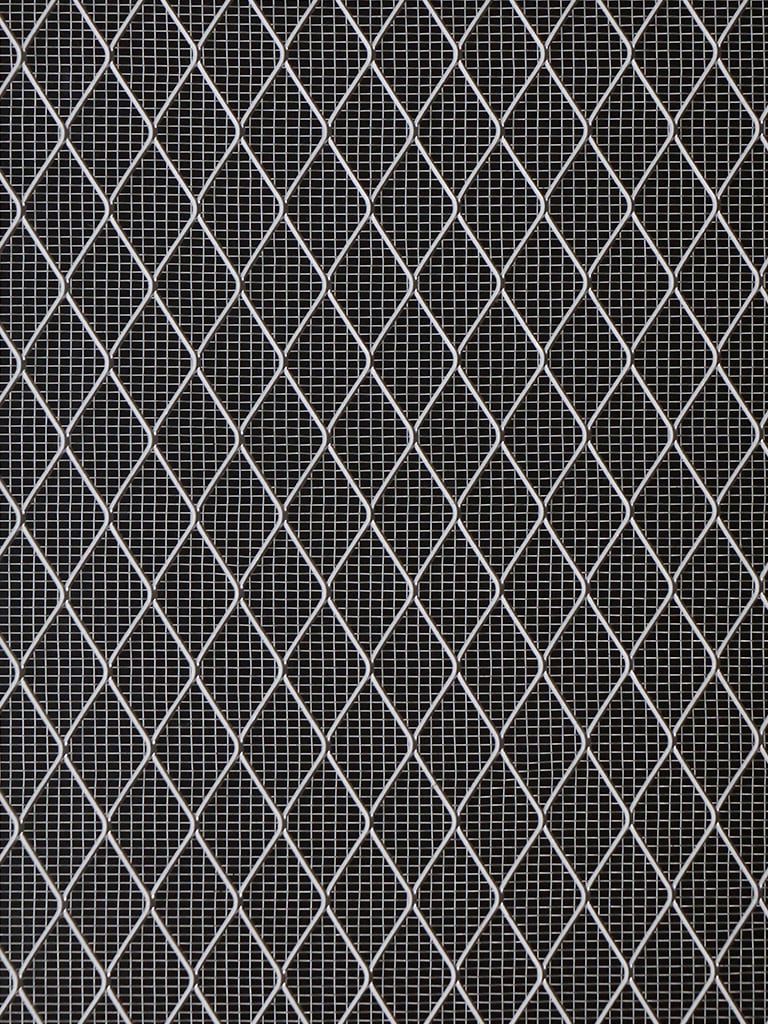 |
Image Target Events
8th Wall Web emits Events / Observables for various events in the image target lifecycle (e.g. imageloading, imagescaning, imagefound, imageupdated, imagelost) Please see the API reference for instructions on handling these events in your Web Application: