8th Wall Hosted Projects
As of Feburary 28, 2026, access to 8thwall.com has ended. It is no longer possible to export 8th Wall hosted projects and migrate them to the open source ecosystem. If you have specific account or project inquires please contact support@nianticspatial.com.
This guide walks through the process of migrating 8th Wall-hosted projects to a self-hosted setup. It applies to all projects previously hosted on 8th Wall, including both Editor and Studio projects.
Project Structure
If you previously exported your 8th Wall project's buildable code, you will have a .zip file containing the following contents:
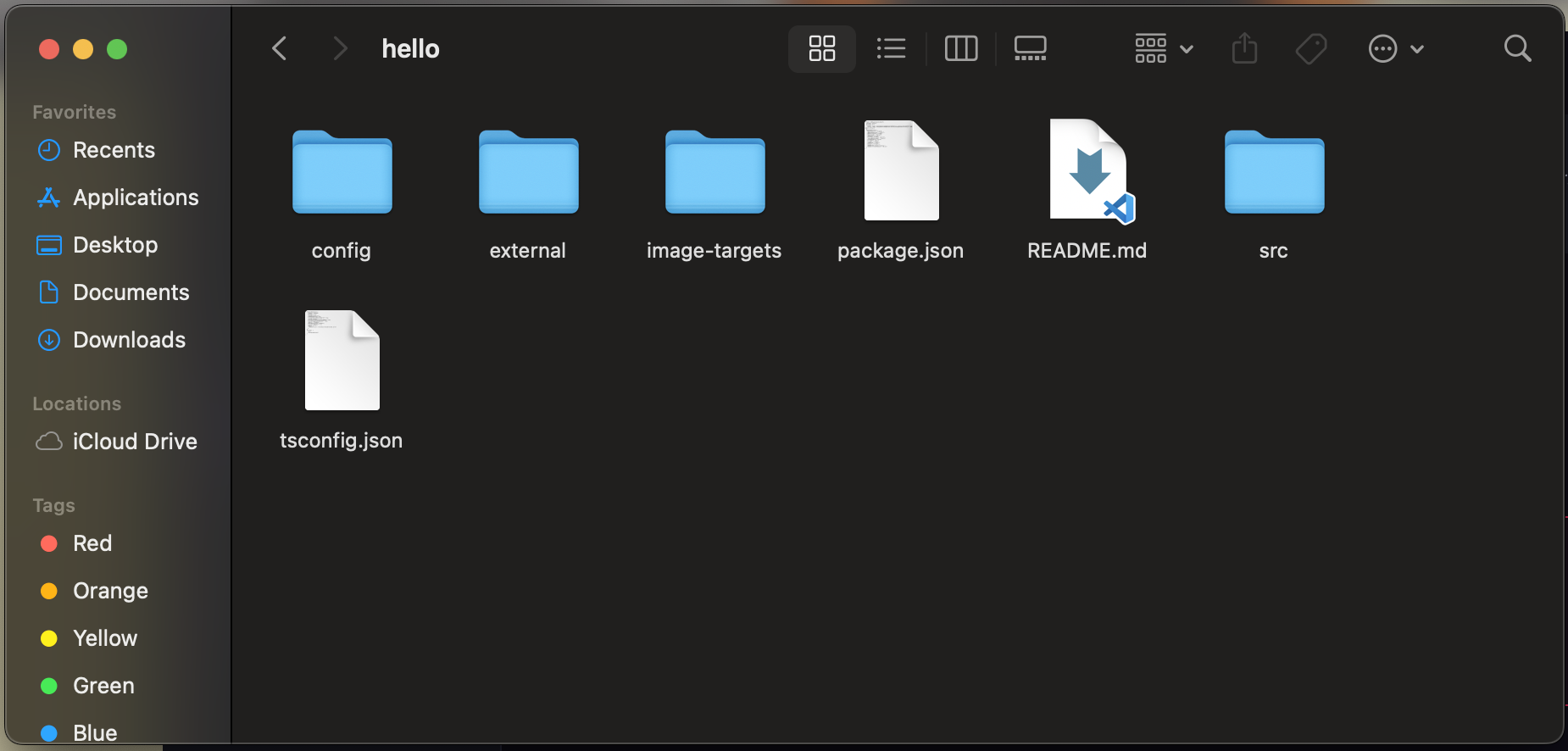
config
Contains the necessary webpack configuration and typescript definitions to support project development.
external
Contains dependencies used by your project, loaded in index.html.
image-targets
Contains your project's image targets (if any).
src
Contains all your original project code and assets
For Studio projects, the scene graph is stored in a file called .expanse.json which may not be visible in your file viewer by default.
Development
If your project was built with Studio, open the project in the 8th Wall Desktop App. With the 8th Wall Desktop App, you can seamlessly continue development and test across desktop and mobile devices without any additional steps.
If your project was built with a web 3D framework such as A-Frame or three.js, you can continue developing using an IDE of your choice and follow the steps below to test the project in realtime on desktop and mobile devices.
Be sure to make required project updates and review updated documentation on publishing your project.
Test on Desktop
- If node/npm are not installed, install using https://github.com/nvm-sh/nvm or https://nodejs.org/en/download
cdto the project root and runnpm install.

- Run
npm run serveto run the development server. Once the local server is running, you will see the URL/IP addresses your project is running at.
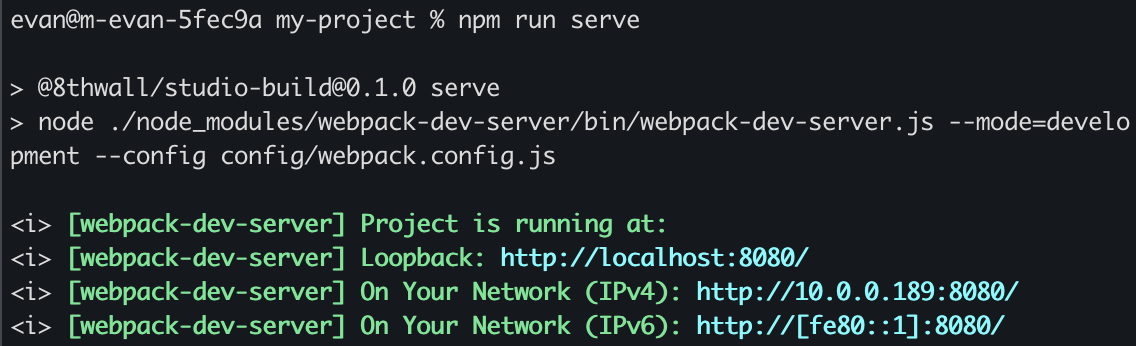
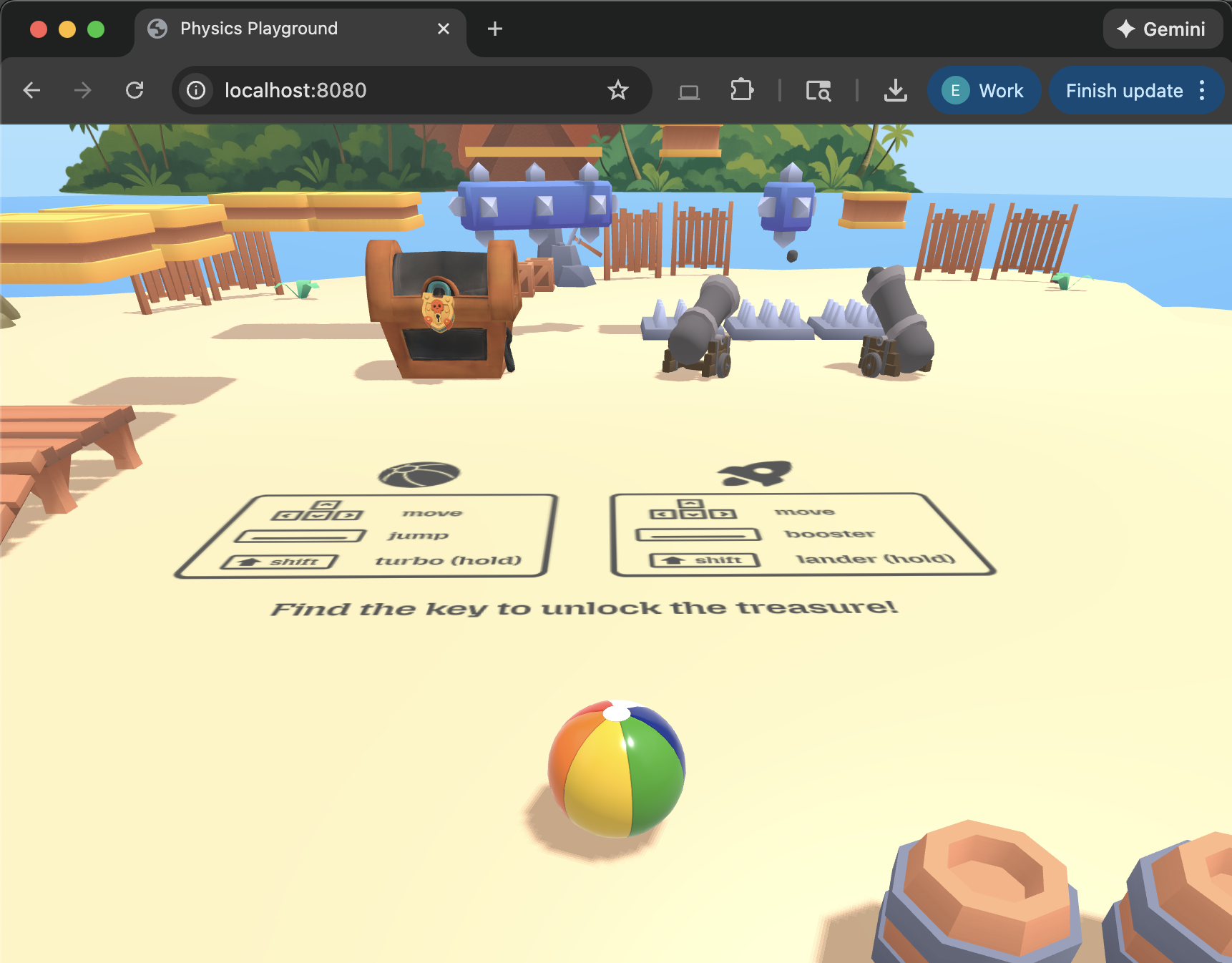
- Open a new browser window and paste in the loopback URL or IP address to test your project in development mode.
Test on Mobile
To test your project on mobile devices, especially for AR experiences that require camera access, you'll need to serve your development server over HTTPS. We recommend using ngrok to create a secure tunnel to your local server.
After setting up ngrok, add the following configuration to config/webpack.config.js under the devServer section:
devServer: {
  // ... existing config
  allowedHosts: ['.ngrok-free.dev']
}